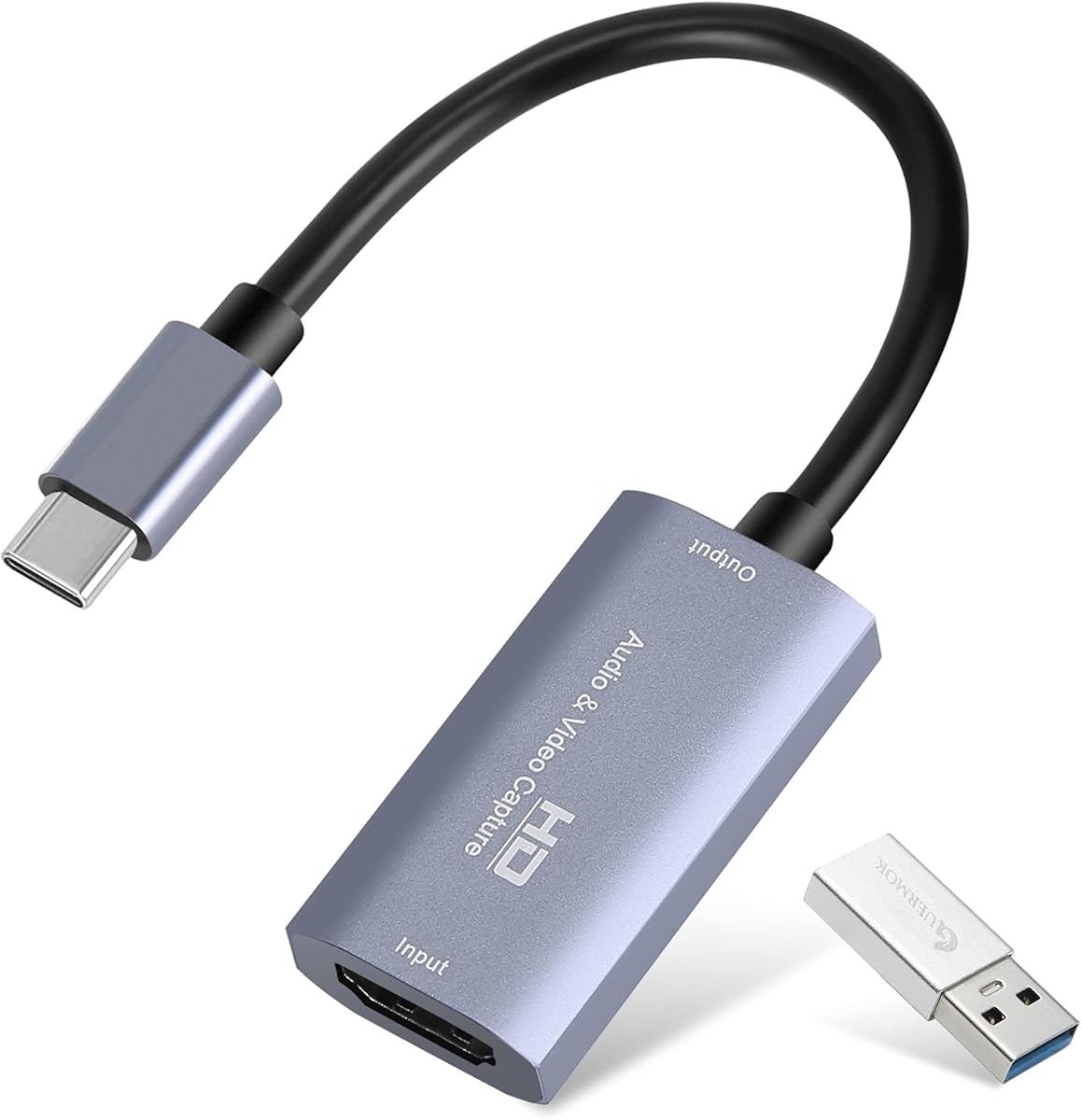
Guermok Video Capture Card
4.4Editor score
Affordable Price Point
1080P 60FPS Output
Plug and Play Design
This guide compares the top capture cards for Linux to help you find the best option for streaming, recording, and gaming with reliable performance.
Finding a reliable capture card for Linux can be challenging due to driver support and compatibility issues. This guide reviews the top ten models known for their plug-and-play functionality and broad OS support to ensure smooth streaming and recording experiences.
We evaluated each product based on video quality, latency, connection types, and explicit Linux compatibility. Our analysis covers budget-friendly options and premium models to help you choose the right tool for your specific content creation or gaming needs.
Each pick highlights key features, pros, and cons to give you a clear picture of what to expect. Keep in mind that prices and availability may change over time, so check the latest details before making your final purchase decision.
4.4Editor score

4.4Editor score

4.2Editor score
The following table provides a side-by-side comparison of all ten capture cards reviewed in this guide. Use this data to quickly assess key specifications like resolution support, connection types, and compatibility features.


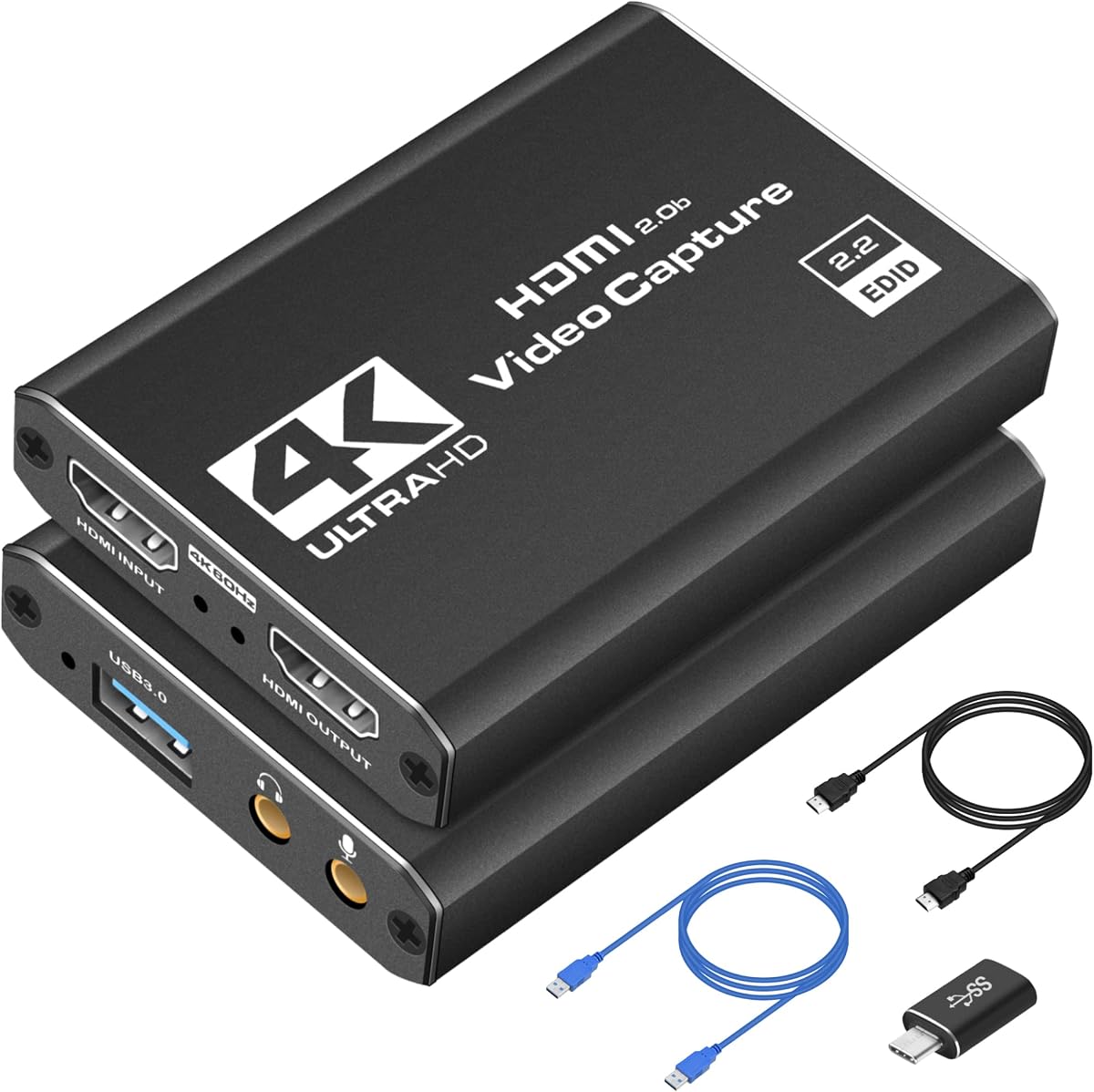


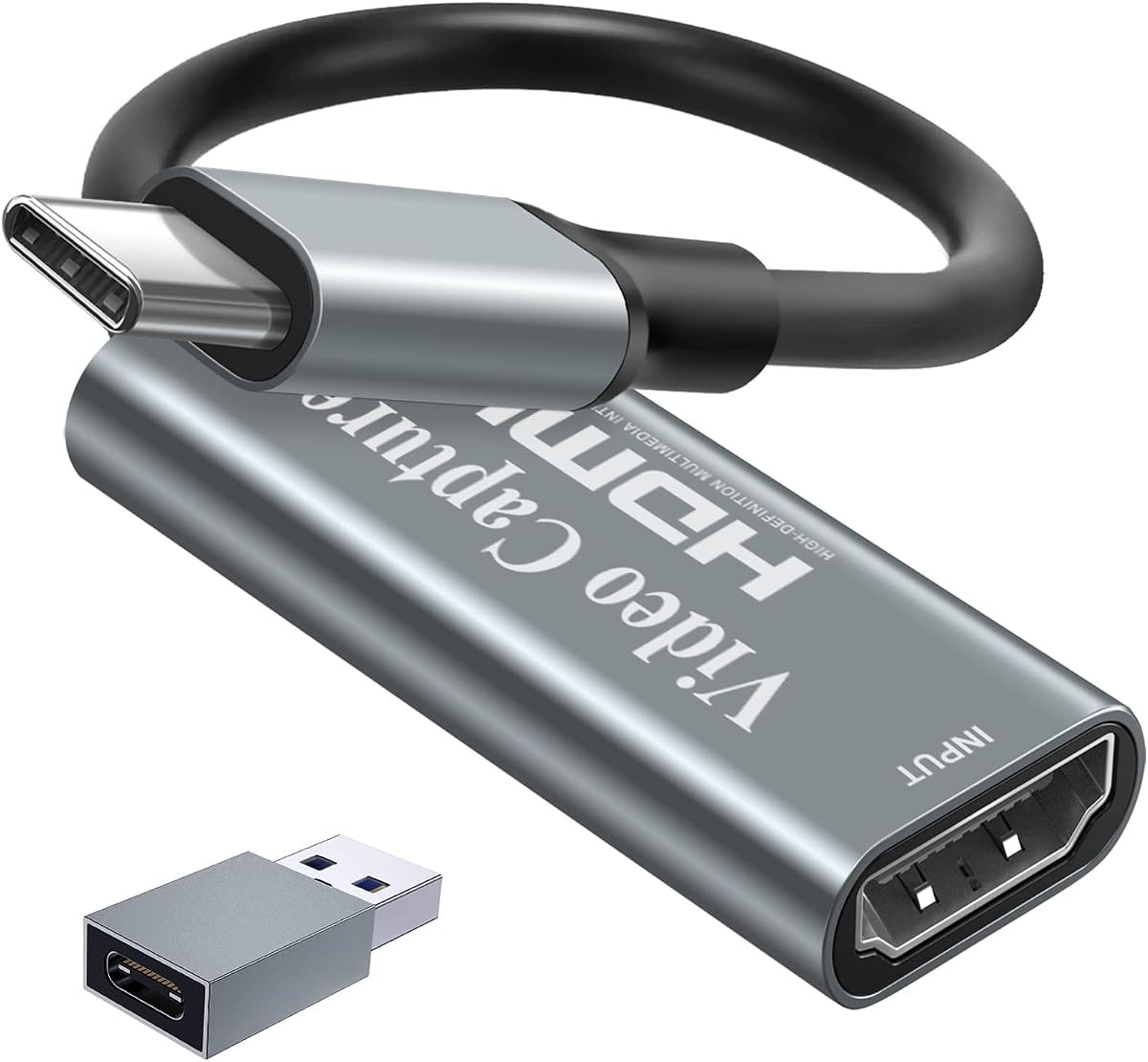
The acer USB 3.0 HDMI Capture Card stands out as a top contender for Linux users seeking reliable entry-level performance. With a rating of 4.4 stars, it delivers consistent quality for streaming and recording tasks without requiring complex driver installations.
We may earn a commission when you buy through this link, at no additional cost to you.
This device features YUY2 technology which provides richer colors compared to standard MJPEG compression. The 1080P 60Hz output ensures smooth video for gaming and live sessions. Its built-in mic-in port allows for easy commentary without extra adapters.
While it supports 4K input, the output is capped at 1080P 60Hz which might limit ultra-high-resolution workflows. However, for most streaming platforms and general use cases, this resolution is sufficient and widely supported by Linux software.
We recommend this card for beginners and casual streamers who need a straightforward plug-and-play solution. Its small size and lack of external power requirements make it highly portable for travel or temporary setups.
YUY2 technology ensures lifelike colors that enhance the visual appeal of your recorded content.
The 3.5mm mic-in port lets you connect headsets directly for synchronized voice commentary.
We may earn a commission when you buy through this link, at no additional cost to you.
The UGREEN capture card is widely recognized for its robust compatibility with Linux systems. It features both USB-A and USB-C ports allowing users to choose the best connection for their specific computer setup. This versatility is rare at this price point.
We may earn a commission when you buy through this link, at no additional cost to you.
Its aluminum casing provides effective heat dissipation which is crucial for stable performance during long streaming sessions. The loop-out feature enables real-time preview without lag ensuring you can monitor your game while capturing simultaneously.
Although it supports 4K input, it outputs at 2K 30FPS or 1080P 60FPS. Users with PS4 or PS5 consoles must turn off HDCP to use this card. These minor constraints do not detract from its overall utility for Linux users.
This device is ideal for those who need a reliable capture solution that works across multiple devices without needing extra adapters. The sturdy build quality ensures it can withstand frequent travel and daily use.
Both Type-A and Type-C ports ensure you can connect to older and newer laptops effortlessly.
The aluminum case keeps the device cool during extended operation preventing overheating issues.
We may earn a commission when you buy through this link, at no additional cost to you.
Guermok offers an excellent value proposition for Linux users on a tight budget. It delivers 1080P 60FPS performance which is sufficient for most streaming needs. The USB-C interface makes it compatible with modern ultrabooks and tablets easily.
We may earn a commission when you buy through this link, at no additional cost to you.
Its small form factor allows it to fit in a pocket or bag making it perfect for travel. The aluminum body helps maintain stability during use. Most Linux distributions recognize it instantly without needing drivers.
One notable drawback is that audio setup may require restarting OBS Studio to function correctly. Additionally using the USB adapter can sometimes drop speeds to USB 2.0 if not flipped properly.
Despite these minor issues the card provides great value for casual streamers and content creators. It is a solid choice for anyone needing a dependable capture tool without breaking the bank.
You get high-quality video capture features at a fraction of the cost of premium brands.
Its compact dimensions make it easy to carry to events or LAN parties seamlessly.
We may earn a commission when you buy through this link, at no additional cost to you.
Newhope focuses on simplicity delivering a capture card that works right out of the box. It supports 1080P 60FPS recording which is perfect for standard streaming. The 4K pass-through lets you play on a monitor while recording on your PC.
We may earn a commission when you buy through this link, at no additional cost to you.
Its mic-in port allows for direct audio input which simplifies the setup process. Linux users benefit from the plug-and-play nature that avoids common driver headaches. It is straightforward and efficient for everyday tasks.
The lack of proprietary software means you rely entirely on third-party tools like OBS. While this is flexible it might be a downside for users wanting an all-in-one management suite. The hardware itself is quite basic but reliable.
We recommend this for users who prioritize ease of use over advanced features. It is a practical choice for those who already have their streaming workflow set up and just need a reliable input device.
Just plug in and start capturing without worrying about configuration or software installation.
Keep your gameplay visible on a TV or monitor while capturing simultaneously without lag.
We may earn a commission when you buy through this link, at no additional cost to you.
This generic 4K HDMI capture card provides solid performance for its price. It accepts 4K input and downscales to 1080P 60FPS for recording. The USB 3.0 connection ensures fast data transfer rates suitable for high frame rate video.
We may earn a commission when you buy through this link, at no additional cost to you.
Its compact design makes it easy to hide behind your setup or pack in a travel kit. Linux compatibility is generally good with major distributions recognizing it as a standard USB device. It integrates well with OBS and other capture software.
While it lacks advanced features like HDR passthrough it delivers consistent results for standard streaming. The lack of color depth options is a limitation for professional editors but fine for general creators.
We suggest this card for casual streamers who need a reliable and portable device. It performs well in typical gaming environments and handles long sessions without significant overheating.
USB 3.0 ensures your video data moves quickly to your computer without bottlenecks.
Use it for home streaming or take it to LAN parties with minimal hassle.
We may earn a commission when you buy through this link, at no additional cost to you.
This UGREEN model is praised for its reliable performance across multiple operating systems including Linux. It offers 2K output at 30FPS which provides a good balance between clarity and system resources. The USB A and C ports give you flexibility in connections.
We may earn a commission when you buy through this link, at no additional cost to you.
Its aluminum casing protects against EMI and aids in heat dissipation. The high data transfer speed of 5 Gbps ensures stable signal transmission. It works well with gaming consoles like PS5 and Switch when HDCP is disabled.
The 2K output might feel slower for fast-paced action compared to 1080P 60FPS but looks sharper. This trade-off is acceptable for those prioritizing visual detail over maximum frame rates. The overall build quality is excellent.
We recommend this for users who need a durable and reliable capture card for long-term use. It offers a solid middle ground between budget and premium options with consistent Linux support.
Choose between 2K and 1080P based on your streamer preferences and hardware limits.
The aluminum alloy construction shields internal components from interference during use.
We may earn a commission when you buy through this link, at no additional cost to you.
This capture card offers a robust audio setup with both mic input and headphone output. This allows you to monitor your voice and game audio in real time. It is one of the few options at this price point that includes these ports.
We may earn a commission when you buy through this link, at no additional cost to you.
The 4K input support with 60Hz ensures you can connect high-end sources comfortably. Linux users will appreciate the driver-free operation that works with OBS and other tools immediately. The warranty adds confidence to the purchase.
While it is a standard capture card with no proprietary software, it performs well for its intended purpose. The focus on audio makes it ideal for streamers who want precise control over their sound without external mixers.
We suggest this card for streamers who need better audio integration out of the box. Its high rating reflects satisfaction with its reliability and ease of use across different systems.
Connect a mic for voice and headphones for game audio to keep your stream synced.
An 18-month warranty provides added peace of mind for your purchase.
We may earn a commission when you buy through this link, at no additional cost to you.
AVerMedia offers a premium capture experience with 4K60 HDR passthrough. This ensures you can play at max settings while recording at 1080P 60FPS. The Streaming Center app provides a simple workflow for beginners to go live quickly.
We may earn a commission when you buy through this link, at no additional cost to you.
For Linux users, compatibility might be more restricted compared to Windows and macOS. However, the hardware itself is top-tier for handling high-bandwidth signals. The low latency performance is crucial for competitive gaming.
The higher price reflects the advanced features like HDR and flexible format options. While Linux support is not as seamless, it remains a viable option for high-end setups where quality is paramount.
We recommend this for serious streamers who prioritize performance and HDR support. It is a solid investment if your workflow relies on high-quality visuals and low latency broadcasting.
Enjoy vivid colors and contrast on your monitor while your capture records 1080P footage.
The dedicated app simplifies streaming to multiple platforms with just a few clicks.
We may earn a commission when you buy through this link, at no additional cost to you.
Papeaso provides a straightforward solution for USB-C focused setups. It accepts 4K input at 60Hz and outputs 1080P 60FPS. It is a cost-effective option for users who need basic capture functionality without extra features.
We may earn a commission when you buy through this link, at no additional cost to you.
Linux users will find it easy to use as it does not require drivers. The lack of audio ports means you may need a separate solution for your microphone. It is purely a video capture tool.
Despite its simplicity it delivers clear visuals and reliable performance. The price point makes it accessible for beginners who want to test streaming without a large investment. It works well for general content creation.
We suggest this for those who have a USB-C laptop and need an affordable capture card. It is best suited for users who do not need integrated audio or passthrough capabilities.
USB-C support ensures compatibility with modern laptops and tablets without adapters.
You get reliable performance without paying for features you might not use.
We may earn a commission when you buy through this link, at no additional cost to you.
This is a professional-grade capture card designed for high-performance recording. It supports 4K60 HDR and VRR passthrough ensuring you capture the full potential of your gaming rig. The 5.1 audio capture is ideal for immersive sound.
We may earn a commission when you buy through this link, at no additional cost to you.
For Linux users, compatibility might require checking specific driver support or using OBS plugins. The hardware is robust and built for heavy-duty usage. It offers advanced settings for color depth and audio channels.
The price is significantly higher than budget options but justifies itself with professional features. It is a choice for streamers who need to record at maximum fidelity. It is a powerful tool for serious production.
We recommend this for professional creators who need the best quality possible. It is an investment for those who prioritize image fidelity and audio quality in their workflow.
Capture games with VRR enabled for smoother motion and reduced tearing in recording.
Record 5.1-channel audio to preserve spatial sound for immersive viewing experiences.
We may earn a commission when you buy through this link, at no additional cost to you.
Selecting the right capture card for Linux requires careful attention to compatibility and features. Use this guide to understand the key factors that influence performance and usability.
Linux support varies by manufacturer. Look for cards explicitly stated to work on Linux without requiring proprietary drivers. Most modern cards follow USB Video Class (UVC) standards which are natively supported.
Check product descriptions for mentions of Linux support before purchasing to avoid driver issues.
Consider the input and output resolutions you need. While many cards support 4K input, they may output at 1080P or 2K. Ensure the output resolution matches your streaming platform requirements.
Higher resolutions require more bandwidth so verify your USB port version meets the speed needs.
Frame rate impacts how smooth your video looks. For gaming, 60FPS is recommended to capture fast motion without blur. Some cards may limit high frame rates at higher resolutions.
Prioritize 60FPS output if you stream action games to maintain clarity and fluidity.
Most cards use USB 3.0 for sufficient bandwidth. Ensure your computer has an available USB 3.0 port or higher. USB-C interfaces offer more flexibility for modern laptops.
Always use high-quality cables to prevent signal loss or reduced resolution during capture.
Low latency is critical for live gaming. Look for cards that advertise minimal delay between input and output. Loop-out ports can help you monitor gameplay without lag on a secondary screen.
Test latency after setup to ensure your reactions remain synchronized with your stream.
Some cards include a mic-in port for direct audio capture. Others may require a separate audio interface. Check if your workflow needs integrated microphone support to save setup time.
Ensure audio latency matches video to avoid sync issues during recording or streaming.
Durability matters if you plan to travel. Aluminum casings help dissipate heat and protect internal components. A sturdy build reduces the risk of damage during transport.
Choose a design that fits your lifestyle whether it is a permanent desk setup or portable kit.
Prices range from budget-friendly to premium. Define your needs and choose a card that fits your budget without compromising essential features like resolution and compatibility.
Read reviews to ensure value for money as cheaper models may have hidden limitations.
Plug the capture card into a USB 3.0 port on your computer and connect your HDMI source to the input port. Most Linux systems will recognize the device automatically. Open your capture software like OBS Studio and select the capture card as your video source.
Configure your resolution and frame rate settings in the software to match the card's capabilities. If audio is included, select the capture card as your audio input device. Test the setup with a short recording to ensure video and audio are synchronized.
Store the card in a protective case when traveling to prevent physical damage. Avoid exposing it to extreme heat or moisture. Regularly update your Linux system to ensure compatibility with the latest kernel modules and software updates.
Not all capture cards work with Linux without additional configuration. Most follow UVC standards which are supported out of the box. Check product descriptions for explicit Linux compatibility before buying.
For most platforms 1080P 60FPS is the standard balance of quality and performance. Higher resolutions like 2K or 4K require more bandwidth and powerful computers to process smoothly.
Most modern capture cards do not require drivers on Linux as they use UVC standards. If a card claims specific software support ensure it has a Linux version before purchasing.
Sync issues often arise from buffer settings in your capture software. Adjust audio offset settings in OBS or other tools to align tracks. Ensure your capture card supports low latency.
Yes you can use a capture card with a PS5 on Linux but you may need to disable HDCP on the console. Check the card's specifications for console compatibility and HDCP support.
USB 3.0 is essential for high-resolution and high-frame-rate capture. USB 2.0 does not provide enough bandwidth for smooth 1080P 60FPS or higher resolutions.
OBS Studio is the most popular choice for streaming and recording on Linux. It supports most capture cards natively. XSplit and VLC also work well depending on your needs.
Check that the HDMI cable is securely connected and your source is on. Ensure the USB port is functional. Restart your capture software and check device permissions in your Linux settings.
We have explored ten capture cards that offer reliable performance for Linux users. Each option brings unique strengths from budget-friendly versatility to professional-grade features.
Prioritize compatibility and resolution requirements when making your choice. Ensure your system setup matches the card's specifications to avoid performance bottlenecks.
Keep in mind that prices change frequently so verify current details before buying. With the right card your Linux setup can deliver stunning streams and recordings.