
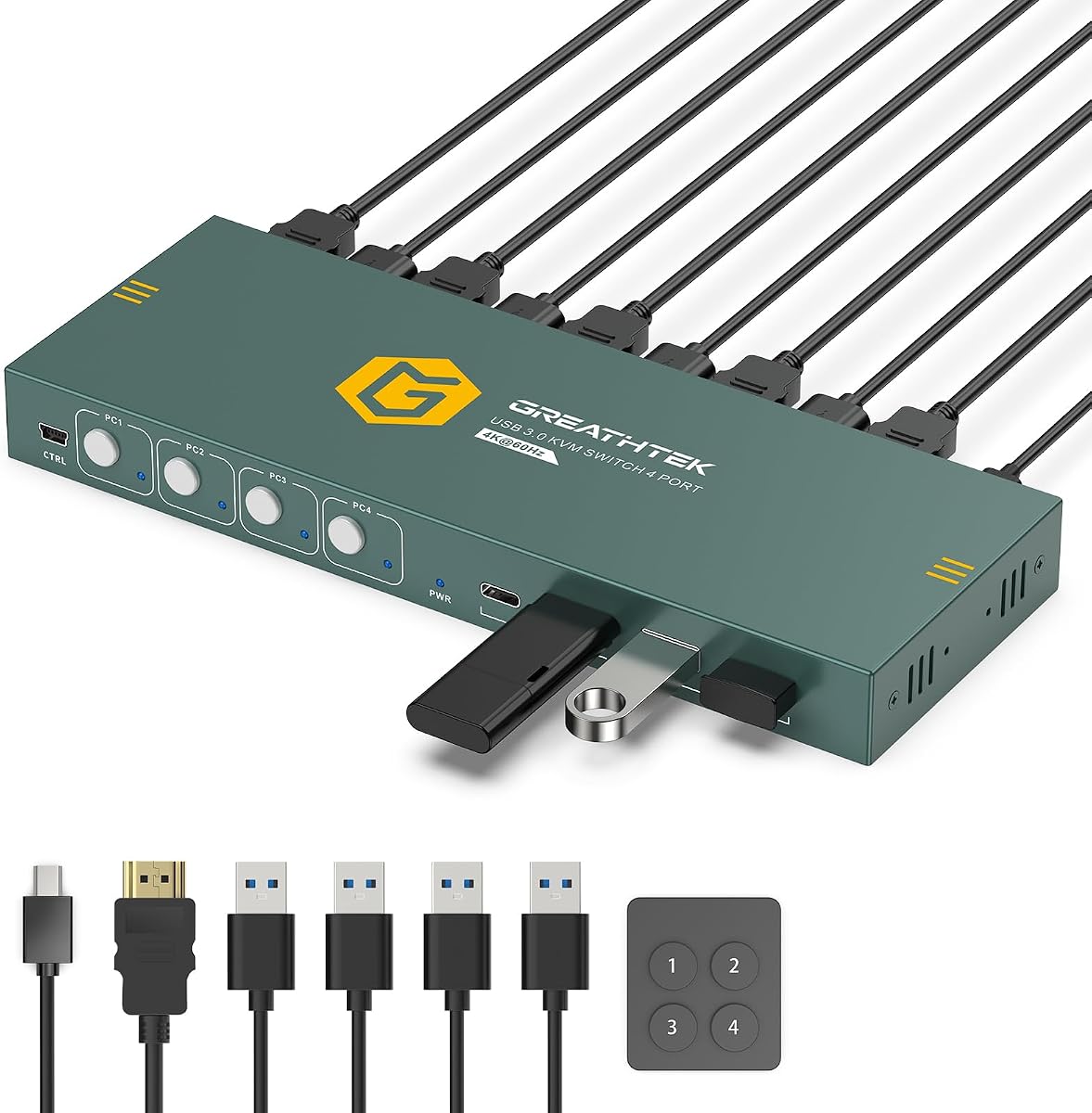
USB3.0 KVM Switch HDMI 4K@60Hz
4.2Editor score
Compact 4 port design
3 USB 3.0 ports
Plug and play setup
Compare the top 10 KVM Switch for 4 Computers options for October 2026, featuring 4K support, USB sharing, and dual monitor configurations for efficient setups.
Managing multiple computers on a single workspace often leads to cable clutter and inefficiency. A quality KVM switch for 4 computers allows you to control several systems with one set of peripherals, streamlining your workflow and keeping your desk organized.
We evaluated ten leading models based on resolution support, switching speed, port availability, and ease of setup. Our analysis covers HDMI and DisplayPort options, ensuring you find a solution that matches your specific hardware needs and budget constraints.
Each pick below highlights key strengths and potential limitations to help you make an informed decision. Prices and availability fluctuate frequently, so verify current details before purchasing to ensure you get the best value for your specific configuration.
4.2Editor score
4.8Editor score

4.7Editor score
This side-by-side comparison highlights the critical specifications of each model to help you quickly identify the right fit for your multi-PC environment based on resolution, ports, and switching methods.


This HDMI KVM Switch stands out as the top choice for users needing to manage four computers through a single monitor setup. With a high rating and robust feature set, it delivers reliable performance for home offices and workstations.
We may earn a commission when you buy through this link, at no additional cost to you.
The switch supports 4K@60Hz video resolution, ensuring crisp visuals for productivity and media consumption. It includes three USB-A 3.0 ports and one USB-C port for sharing peripherals like keyboards, mice, and drives across all connected systems.
While it lacks hotkey switching, the included wired remote provides convenient one-touch access to each computer. The package includes all necessary cables and mounting hardware, making initial setup straightforward for most users.
Ideal for professionals who need to switch between multiple systems efficiently, this unit offers excellent value. It balances high performance with ease of use, making it a strong recommendation for most multi-PC configurations.
The HDMI 2.0 interface ensures smooth video transmission up to 4K@60Hz, maintaining clarity during high-demand tasks like design work or video playback.
The included wired remote allows you to place the KVM switch out of reach while still maintaining easy access to switching controls via numbered buttons.
We may earn a commission when you buy through this link, at no additional cost to you.
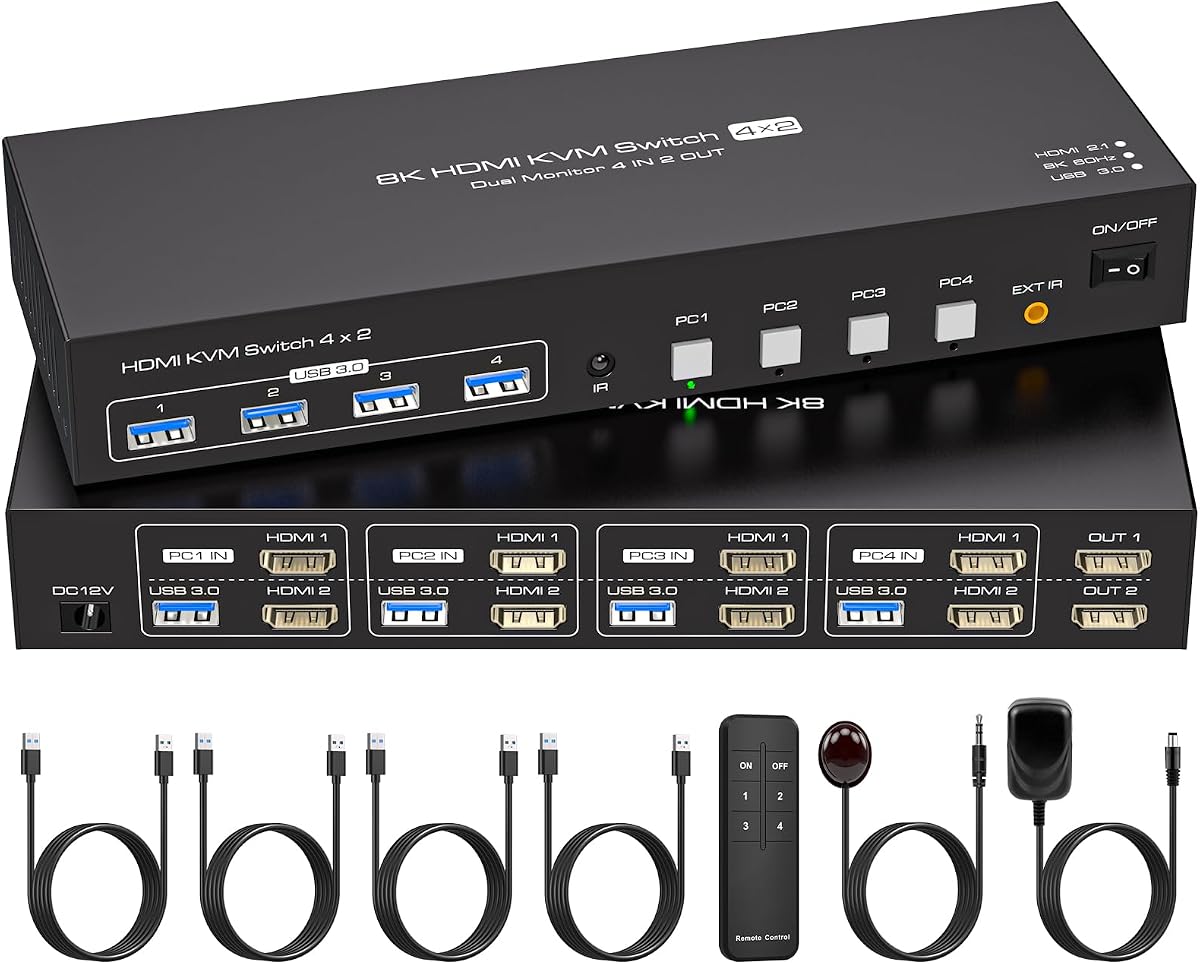
This model offers a unique solution for users who need dual monitor support across four computers. It enables extended and duplicate modes, allowing for flexible display configurations that adapt to various workflow needs.
We may earn a commission when you buy through this link, at no additional cost to you.
With support for up to 8K@60Hz, it future-proofs your setup for high-resolution displays. The built-in EDID emulation ensures that windows remain in place when switching between computers, preventing layout disruptions.
Setup requires each computer to have two HDMI ports, which may limit compatibility with older machines. The included infrared remote provides a wireless option for switching, keeping your desk clear of extra cables.
Best for advanced users needing dual-screen productivity across multiple systems, this KVM switch delivers powerful performance. Its high resolution support makes it suitable for creative professionals and power users.
The ability to switch between copy and extend modes allows you to tailor your display setup to whether you need synchronization or independent screen space.
EDID emulation prevents Windows from rearranging open applications every time you switch sources, saving time and reducing frustration during transitions.
We may earn a commission when you buy through this link, at no additional cost to you.
UGREEN delivers a robust KVM solution that prioritizes connectivity with six USB ports. This allows for extensive peripheral sharing beyond just keyboards and mice, supporting printers, webcams, and drives simultaneously.
We may earn a commission when you buy through this link, at no additional cost to you.
The unit supports 4K@60Hz video and includes EDID emulation to maintain display settings. This ensures that switching between computers is smooth without flickering or resolution changes that disrupt your workflow.
Users must note that power adapters are not included, so you will need to source a compatible supply separately. Additionally, docking stations are not supported, which may limit laptop users looking for expanded connectivity.
Ideal for office environments needing multiple USB connections, this model offers excellent versatility. The inclusion of a wired controller makes placement flexible while keeping your desk clean and organized.
With six USB ports, you can share more devices than typical four-port switches, making it easier to connect printers or scanners without extra hubs.
The EDID feature ensures that your monitor settings persist across switches, preventing the need to reconfigure resolution or layout every time you change sources.
We may earn a commission when you buy through this link, at no additional cost to you.
This premium unit supports up to four monitors across four computers, making it ideal for complex setups. The combination of HDMI and DisplayPort inputs offers flexibility for mixed monitor configurations.
We may earn a commission when you buy through this link, at no additional cost to you.
It supports high resolutions up to 8K@30Hz and 4K@144Hz, catering to gaming and professional design needs. The included audio jack ensures you can share sound output, which is often overlooked in standard KVMs.
However, setting up four monitors requires significant cabling, with each computer needing multiple display connections. The device is more complex to manage compared to single-monitor switches, requiring careful planning.
Best for advanced users with multiple screens who need seamless switching, this KVM is powerful. Its high-end specs justify the cost for those who rely on extensive multi-display workflows daily.
By accepting both HDMI and DisplayPort, this switch accommodates a wider range of monitor types, giving you more freedom in hardware selection.
The dedicated audio port allows you to share audio output across systems, which is essential for streaming or video conferencing without extra hardware.
We may earn a commission when you buy through this link, at no additional cost to you.
This KVM switch targets users needing high refresh rates, supporting 4K@120Hz for smooth visuals. It uses HDMI 2.1 to achieve performance that standard HDMI 2.0 switches cannot match.
We may earn a commission when you buy through this link, at no additional cost to you.
The unit includes an EDID function to maintain resolution stability during switching. It also comes with an IR extension receiver and controller, allowing flexible placement for convenient access.
To achieve these high speeds, you need monitors and cables that fully support HDMI 2.1, which adds to the cost. It is limited to single monitor setups, so multi-screen users may need other options.
Ideal for gamers or creative professionals needing smooth motion, this switch delivers strong performance. Its focus on speed makes it a solid choice for high-demand visual applications.
The 4K@120Hz capability ensures that fast-moving content remains smooth, reducing motion blur during video playback or gaming sessions.
The IR extension cable lets you position the controller where it fits your workflow, keeping the switch hidden while maintaining easy access.
We may earn a commission when you buy through this link, at no additional cost to you.
UGREEN focuses on build quality with an aluminum housing that resists heat and wear. This makes it a sturdy option for long-term daily use in busy environments.
We may earn a commission when you buy through this link, at no additional cost to you.
It supports up to 8K@60Hz, providing future-ready video capabilities. The four USB 3.0 ports include a USB-C option for broader device compatibility, enhancing its utility.
However, it lacks EDID emulation, which means displays may reset settings during switching. Users must also ensure they use A to C cables for proper connection to computers.
Best for users prioritizing durability and high resolution, this model is a solid choice. Its construction ensures reliability, though the lack of EDID may affect convenience.
The aluminum chassis helps dissipate heat better than plastic units, extending the lifespan of the device under continuous operation.
Support for 8K video ensures your setup remains compatible with next-gen displays without needing to replace the switch.
We may earn a commission when you buy through this link, at no additional cost to you.
This model offers a compact design that fits easily on crowded desks. It supports 4K@60Hz and includes a wired remote for convenient switching without cluttering your workspace.
We may earn a commission when you buy through this link, at no additional cost to you.
The unit provides three USB 3.0 ports for sharing peripherals, which is sufficient for most basic setups. Plug and play functionality ensures quick installation without driver issues.
While it lacks the fifth USB port found on other models, it remains effective for standard keyboard and mouse sharing. The remote keypad ensures you can switch sources from a comfortable distance.
Ideal for small offices or home users, this KVM balances size and performance. Its simplicity makes it a great option for those who need basic multi-PC control.
The smaller form factor leaves more desk space for work materials, which is valuable in shared or limited workspace environments.
LED indicators provide instant visual confirmation of the active computer, reducing confusion during rapid switching.
We may earn a commission when you buy through this link, at no additional cost to you.
Hearvo stands out by offering a lifetime protection plan, adding significant value to the purchase. It supports 4K@60Hz and includes a complete package with all necessary cables for immediate use.
We may earn a commission when you buy through this link, at no additional cost to you.
The unit features adaptive EDID to maintain stable image transmission. It also provides four USB 3.0 ports with a USB-C option, allowing broader peripheral compatibility for various devices.
Setup is straightforward with plug and play compatibility across major operating systems. The anti-slip rubber pads ensure the switch stays secure on your desk during use.
Best for risk-averse buyers, the included protection plan provides peace of mind. Its solid performance and complete accessories make it a convenient choice for general office use.
The inclusion of all cables and a remote reduces the need for extra purchases, simplifying the initial setup process significantly.
The lifetime protection plan ensures that you are covered against defects for an extended period, reducing long-term ownership costs.
We may earn a commission when you buy through this link, at no additional cost to you.
This unique model supports three monitors across four computers, offering a balanced multi-screen setup. It uses both HDMI 2.1 and DisplayPort 1.4 to deliver high performance across connected displays.
We may earn a commission when you buy through this link, at no additional cost to you.
Support for up to 4K@144Hz on DisplayPort inputs makes it suitable for gaming or creative work. The package includes a wired remote and power adapter, ensuring everything needed for setup is present.
Your computers must support three displays each to utilize this feature fully. The cabling complexity increases with multiple monitors, so careful planning is needed for clean cable management.
Ideal for users needing triple screens, this KVM provides a rare and useful capability. Its combination of resolution and port options makes it a strong choice for power users.
Support for three monitors allows for extensive workspace without needing extra physical desks or complex mounting solutions.
The ability to run displays at 144Hz ensures smooth visuals for motion-heavy content, benefiting gaming and high-speed video tasks.
We may earn a commission when you buy through this link, at no additional cost to you.
This KVM provides dual monitor support for four computers at a reasonable price. It includes an EDID emulator to maintain window layouts across switches, ensuring workflow continuity.
We may earn a commission when you buy through this link, at no additional cost to you.
With support for up to 8K@60Hz and 4K@144Hz, it handles high-resolution needs well. The metal housing adds durability, ensuring the device withstands daily wear in busy offices.
Each computer must have two HDMI ports to work fully. If your machines lack these, you may need active adapters, adding cost and complexity to the setup.
Best for users needing dual screens without premium pricing, this KVM is a strong choice. Its balance of features and performance makes it suitable for a wide range of workstations.
The metal housing provides better heat dissipation and physical protection than plastic alternatives, extending the lifespan of the device.
The EDID emulator locks screen positions, so you do not need to reorganize windows every time you switch between computers.
We may earn a commission when you buy through this link, at no additional cost to you.
Selecting the right KVM switch involves evaluating several key factors to ensure compatibility and performance with your existing setup.
Look for models that support at least 4K@60Hz to ensure sharp visuals and smooth motion. If you need higher performance like 4K@120Hz or 8K, confirm that the switch and your cables support HDMI 2.1 or DisplayPort 1.4 standards.
Prioritize switches with high resolution support to future-proof your setup against newer displays.
Determine if you need single, dual, or triple monitor support. Some switches allow two or three screens to be shared across computers, but this requires your systems to have multiple video outputs.
Choose a model that matches your display count to avoid compatibility issues.
Standard switches offer four USB ports, but some provide six or more for additional peripherals like printers or scanners. Ensure the number of USB 3.0 ports meets your device-sharing needs.
More ports provide greater flexibility for connecting multiple devices simultaneously.
EDID emulation maintains display settings across switches so windows do not rearrange. This feature is essential for maintaining productivity during rapid transitions between computers.
Always check if the switch includes EDID emulation for seamless switching.
Consider how you plan to switch sources. Options include front-panel buttons, wired remotes, or infrared remotes. Wired remotes offer convenience without needing to reach the device directly.
Select a switching method that fits your desk layout and workflow preferences.
Some switches include a power adapter while others do not. Ensure you have access to a compatible power source to guarantee stable operation during use.
Verify what power accessories are included before purchasing.
Many models come with necessary HDMI and USB cables while others require you to source them separately. A complete kit saves time and ensures compatibility.
Check if cables are included to avoid additional purchases.
Metal housings offer better durability and heat dissipation than plastic. For heavy daily use, choose a model with robust construction to ensure longevity.
Opt for high-quality materials to protect your investment over time.
Connect each computer to the KVM switch using the appropriate video and USB cables. Ensure all connections are secure before powering on the device to avoid signal loss or instability.
Use the remote or panel buttons to switch between computers. Allow a few seconds for the screen to refresh and stabilize before interacting with the new system.
Keep the switch in a well-ventilated area to prevent overheating. Avoid dust accumulation on ports by covering unused ones and cleaning regularly with a soft brush or compressed air.
Not all models support audio. Some units include a 3.5mm audio jack for sharing sound output. Check the product specifications to confirm audio support if it is essential for your use case.
Yes, most KVM switches work with laptops. Ensure your laptop has the required HDMI or DisplayPort outputs. Some units require USB data cables in addition to video cables for proper functionality.
HDMI 2.1 supports higher refresh rates and resolutions like 4K@120Hz or 8K. HDMI 2.0 is limited to 4K@60Hz. Choose HDMI 2.1 if you need higher performance for gaming or professional tasks.
Most models are compatible with macOS as well as Windows and Linux. However, verify compatibility with your specific Mac model to ensure proper signal recognition and display support.
Flickering can occur due to unstable EDID settings or incompatible cables. Enable EDID emulation if available and ensure you use high-quality cables designed for the supported resolution.
Yes, KVM switches with USB 3.0 ports allow you to share peripherals like printers and scanners. Ensure your devices do not require more bandwidth than the switch can provide.
Most models do not support keyboard hotkey switching. Instead, they rely on physical buttons or remotes. Check the product details if hotkey functionality is a requirement for your workflow.
Active adapters are needed if your computer lacks sufficient video ports. If your system only has one HDMI port but the KVM requires two per computer, an active adapter may be necessary.
We highlighted the HDMI KVM Switch for 4 Computers as our top pick for its balance of performance and features. It delivers reliable 4K support and essential peripherals sharing for most users.
Prioritize models with EDID emulation and sufficient USB ports to ensure smooth operations. Your choice should align with your display count and the complexity of your multi-PC environment.
Prices and availability change regularly so verify the current listings before buying. This ensures you secure the best value for the specific configuration that suits your needs.