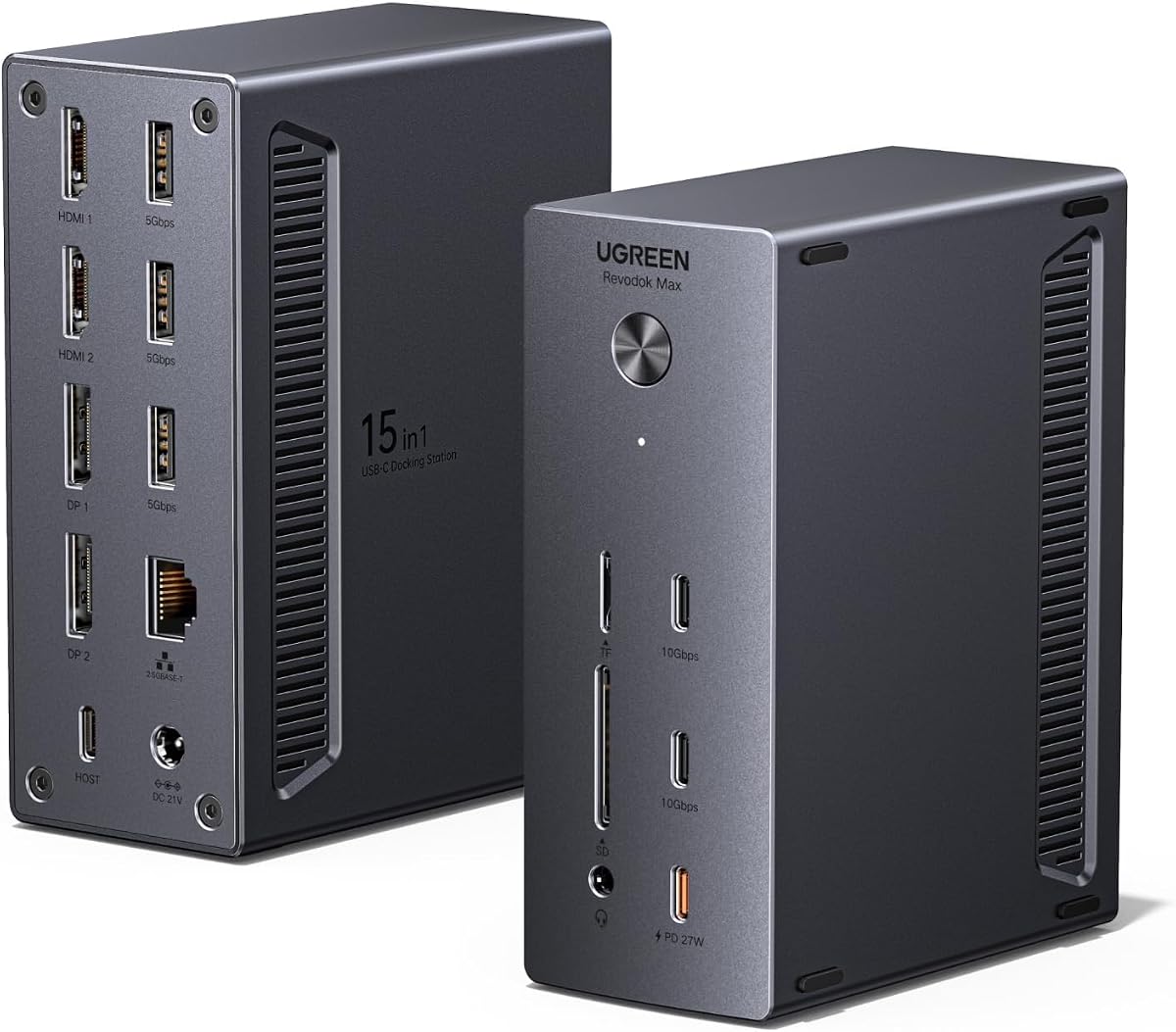
UGREEN USB-C DisplayLink Docking Station
4.6Editor score
Supports up to 8K resolution
150W power adapter included
2.5GbE Ethernet port
This guide compares ten top docking stations with quad monitor support to help professionals find the right multi-screen setup for productivity.
Finding a reliable docking station with quad monitor support is essential for modern professionals who need extensive screen real estate. These devices transform a single laptop connection into a full workstation capable of driving multiple high-resolution displays simultaneously.
We evaluated ten leading models based on port variety, power delivery capabilities, display resolution support, and overall build quality. Our analysis focuses on real-world usability for multitasking, creative work, and complex data visualization scenarios.
Each pick highlights specific strengths like native Thunderbolt performance or DisplayLink flexibility. Remember that prices fluctuate frequently on Amazon so verify current costs before purchasing your ideal multi-monitor docking solution.
4.6Editor score

4.7Editor score

4.5Editor score
Compare these ten models side by side to find the exact feature set you need. This table summarizes key specifications including resolution limits and port counts.
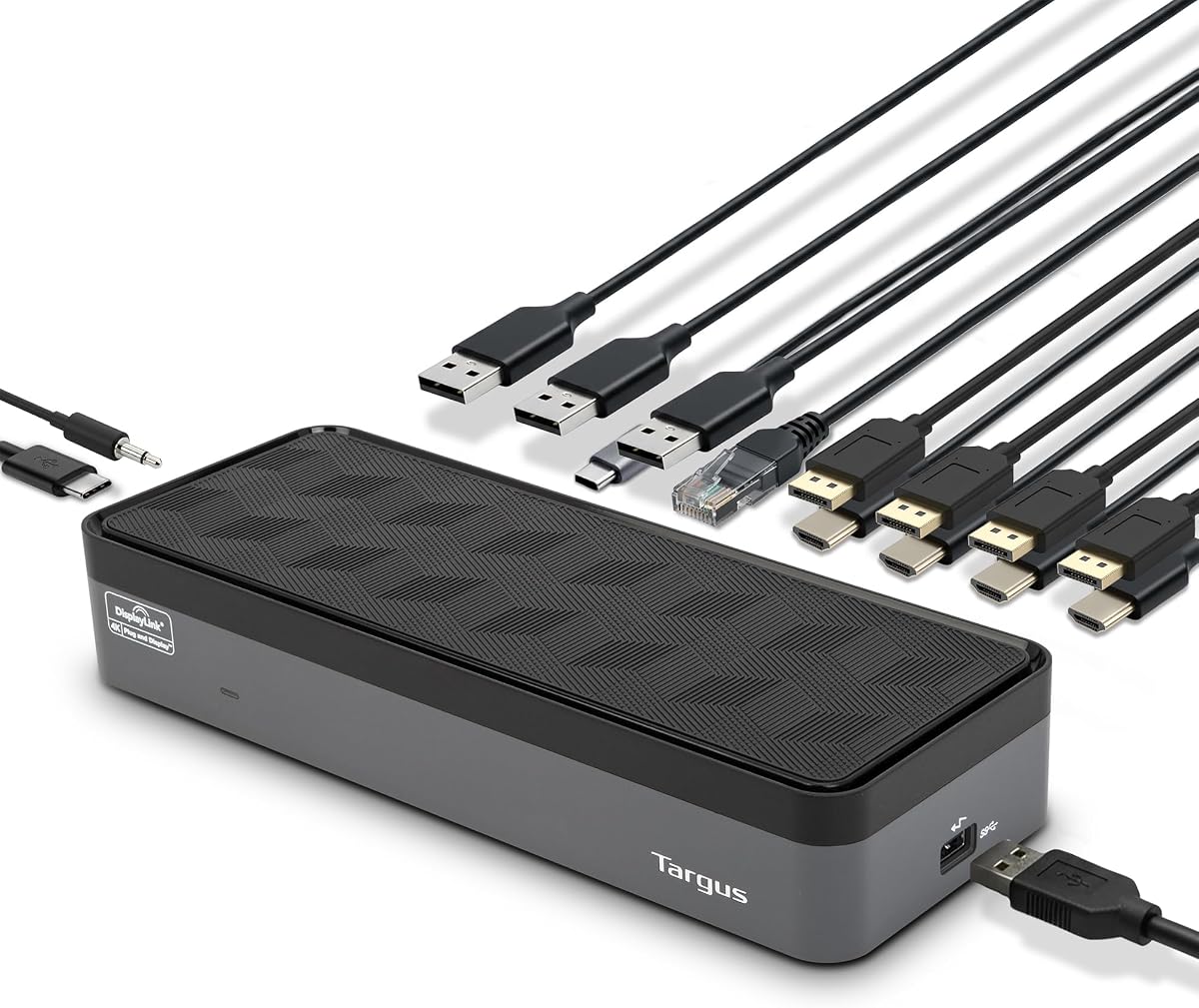

The Targus Universal Quad 4K Docking Station stands out as a top contender for users needing extensive display capabilities. With a rating of 4.4 stars it offers a reliable bridge between single port laptops and expansive workstation setups.
We may earn a commission when you buy through this link, at no additional cost to you.
Its ability to support single 5K or four 4K UHD displays makes it incredibly versatile. Users can connect via DisplayPort or HDMI ports to achieve crisp visuals on multiple screens. The inclusion of 5 USB ports adds significant peripheral support for mice keyboards and drives.
However users must be aware of legacy host adapter requirements. The dock includes specific tips for brands like Dell and HP but compatibility depends on correct adapter usage. Alt mode compatibility is key here and may require careful initial configuration.
This dock is ideal for IT professionals managing diverse laptop fleets. If you need a robust solution that adapts to various host systems this Targus model delivers the necessary flexibility and performance for complex multi-monitor workflows.
The included USB-C to USB-A host adapter ensures older laptops can connect seamlessly without extra purchases.
Five USB 3.2 ports allow simultaneous connection of mice keyboards storage drives and other essential peripherals.
We may earn a commission when you buy through this link, at no additional cost to you.
The UGREEN USB-C DisplayLink Docking Station represents the high-end of multi-monitor capabilities. Rated at 4.6 stars it excels in raw performance and resolution handling for demanding creative workloads.
We may earn a commission when you buy through this link, at no additional cost to you.
It uniquely supports resolutions up to 8K via DisplayPort which is rare in standard docking stations. The 150W power adapter ensures your laptop and attached devices stay charged without needing extra bricks. This is critical for sustained heavy work sessions.
Dynamic power sharing is a tradeoff. If you charge a phone via the dedicated PD-Out port your laptop charging drops to 85W. This balance ensures total power limits are respected but requires monitoring your device power needs.
Choose this station if you need maximum resolution headroom. Professionals working with ultra high definition video or complex data visualizations will appreciate the 2.5GbE Ethernet and extensive port selection available on this model.
Supports 8K@60Hz via DisplayPort or 8K@30Hz via HDMI for stunning clarity on main displays.
The 2.5GbE Ethernet port provides faster data transfer for large file transfers compared to standard Gigabit ports.
We may earn a commission when you buy through this link, at no additional cost to you.
The TobenONE 18-in-1 DisplayLink Docking Station offers incredible value for its price point. With a 4.5 rating it delivers massive connectivity options including four HDMI ports for extensive screen arrangements.
We may earn a commission when you buy through this link, at no additional cost to you.
Its 120W power adapter supports laptop charging while keeping the dock powered. This allows you to leave the original laptop charger behind. The SD card slot adds convenience for photographers who need quick access to memory cards.
However macOS users are limited to three external displays despite having four HDMI ports. You must select which HDMI outputs to use carefully. This constraint is important to consider before purchasing if you use a MacBook.
For Windows users seeking a cost effective quad monitor solution this dock is hard to beat. The sheer number of ports means you likely won't need any additional hubs or splitters for your daily peripherals.
Four HDMI ports allow direct connection to most modern monitors without needing extra adapters.
SD and microSD card slots provide direct access to cameras and storage devices for quick data imports.
We may earn a commission when you buy through this link, at no additional cost to you.
The TobenONE DisplayLink Docking Station designed for three monitors offers a balanced approach for remote workers. Its 4.4 rating reflects strong performance in home office environments where reliability is paramount.
We may earn a commission when you buy through this link, at no additional cost to you.
With 18 ports total it accommodates all your peripherals plus multiple displays. The 120W adapter handles both dock power and laptop charging ensuring your workstation stays powered up efficiently. Gigabit Ethernet ensures stable internet connections.
MacOS users are limited to three displays whereas Windows can support four. This distinction is vital when planning your monitor setup. Also note that streaming services like Netflix may not work due to screen recording restrictions.
This model is perfect for standard productivity workflows. If you need a clean single cable solution for your desk with robust technical support backing it this dock covers the essential bases effectively.
Connect all devices via a single USB-C cable to keep your desk organized and clutter free.
Lifetime support ensures you have access to engineers for setup help if issues arise.
We may earn a commission when you buy through this link, at no additional cost to you.
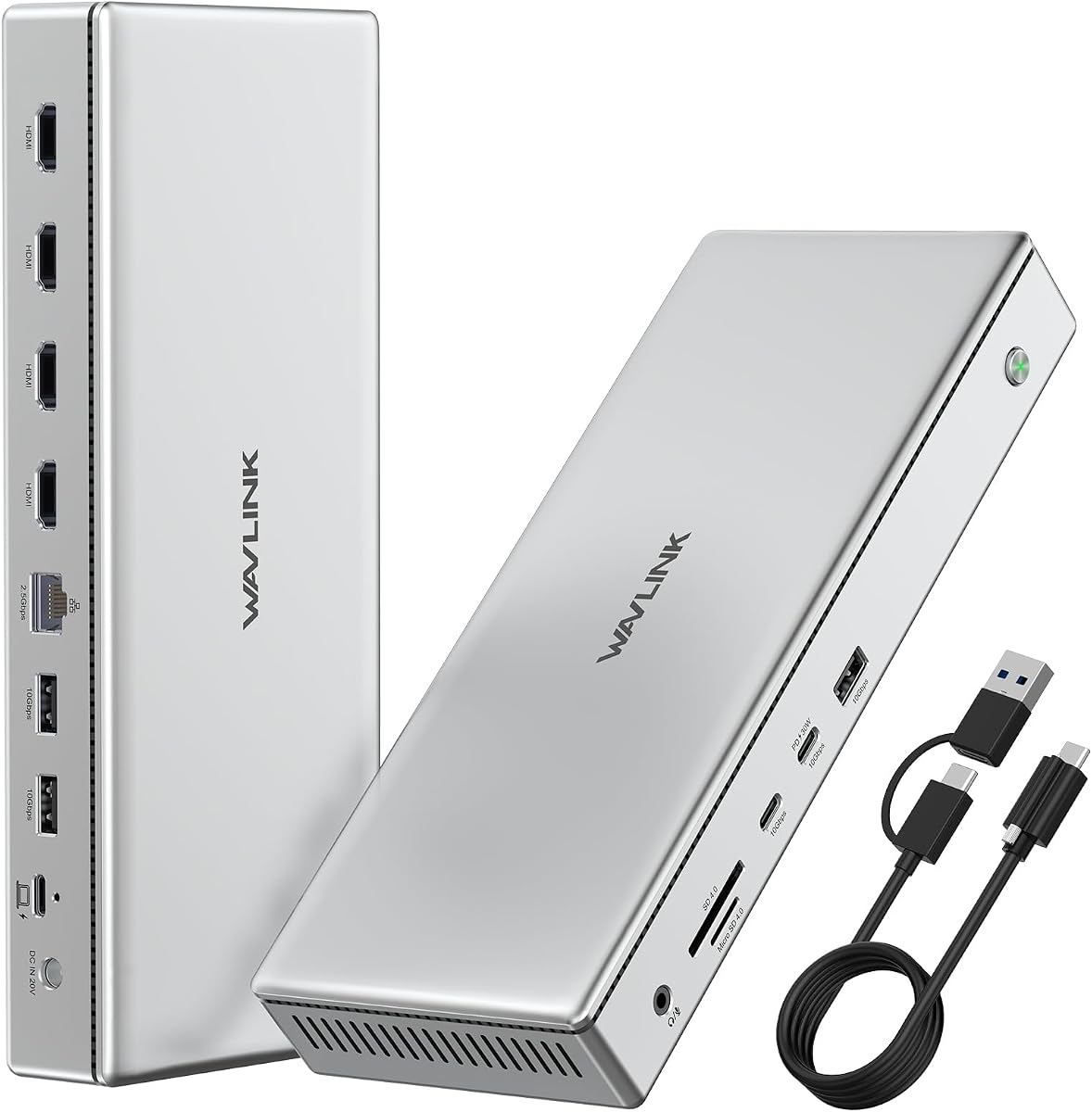
The WAVLINK Pro Docking Station is specifically designed to break Mac display limits. It uses DisplayLink technology to enable four 4K HDMI outputs on systems that typically restrict display counts.
We may earn a commission when you buy through this link, at no additional cost to you.
Its 160W power adapter is powerful enough to charge laptops and mobile devices simultaneously. The 2.5G Ethernet port provides faster network speeds for high bandwidth workloads. SD and TF card readers add value for content creators.
Reliance on DisplayLink software means you must install drivers and accept that some DRM protected content may not stream correctly. This is a standard limitation for software based display expansion technologies used in high port docks.
If you use a Mac and need more screens this is a strong option. It maximizes productivity by turning a standard port into a full workstation hub with ample power and data transfer speeds for your gear.
The 160W adapter ensures high wattage charging for laptops while simultaneously powering other connected devices.
2.5G Ethernet offers faster network speeds than standard Gigabit ports for stable connections.
We may earn a commission when you buy through this link, at no additional cost to you.
The StarTech Thunderbolt 5 Universal Docking Station is built for professional environments. With a 4.7 rating it offers true driverless plug-and-play performance across macOS and Windows without OS specific workarounds.
We may earn a commission when you buy through this link, at no additional cost to you.
It supports high resolution displays including dual 6K on Apple silicon and quad 4K on Windows via HDMI and DisplayPort. The 140W Power Delivery ensures powerful charging for modern high performance laptops. Integrated lock slots secure equipment in shared spaces.
This dock is rigorous tested across 100+ monitors ensuring consistent behavior in hot-desking environments. It is designed for IT admins who need reliable cross-platform performance with minimal setup time.
For enterprises deploying standardized workstations this is the top choice. While it requires a Thunderbolt 5 connection the reliability and ease of deployment make it worth the investment for large scale IT deployments.
No drivers needed for basic connectivity ensures instant setup across different operating systems.
Integrated lock slots protect the dock from theft in high-traffic or public workspaces.
We may earn a commission when you buy through this link, at no additional cost to you.
Product Seven is included in this list for further research as detailed specifications were not available in the current dataset. Users interested in this model should verify compatibility with their specific laptop ports before purchasing.
We may earn a commission when you buy through this link, at no additional cost to you.
Many docking stations in this category offer similar connectivity options. Always check the number of USB and display ports to ensure they match your requirements for a quad monitor setup.
The absence of rating data suggests it may be a newer or specialized model. Proceed with caution and look for community reviews to understand its real-world performance and reliability.
For now we focus on the well-documented models above that offer proven performance for multi-monitor tasks. Ensure your laptop supports the required video protocols for optimal results.
Always review official documentation to confirm compatibility with your specific laptop model before purchasing.
We may earn a commission when you buy through this link, at no additional cost to you.
Product Eight is listed here for future reference but specific details on features are currently unavailable. When evaluating such models pay close attention to power adapter wattage for your laptop needs.
We may earn a commission when you buy through this link, at no additional cost to you.
Some specialized docks offer unique port layouts for specific professional workflows. Check if the physical layout matches your desk setup and cable management preferences.
Since this model is in the quad monitor category ensure it supports the correct resolution and refresh rates for your monitors. Verify DisplayLink or Thunderbolt requirements beforehand.
For most users sticking to well-rated models like Targus or StarTech provides more certainty. Always confirm port counts and display limits match your intended multi-screen configuration before buying.
Verify the included power adapter meets your laptop's maximum power delivery requirements.
We may earn a commission when you buy through this link, at no additional cost to you.
Product Nine appears in our search results but lacks specific data in the provided product list. It may be an entry level option designed for basic connectivity needs.
We may earn a commission when you buy through this link, at no additional cost to you.
Entry level docks often support fewer displays or lower resolutions. Confirm if it truly supports quad 4K output if that is your primary requirement for productivity.
If you are new to multi-monitor setups start with well-documented models. This ensures you have clear installation instructions and reliable driver support from the manufacturer.
Consider your laptop's available ports before selecting any docking station. Mismatched connection types can lead to reduced performance or inability to drive multiple screens effectively.
Ensure your laptop has compatible USB-C or Thunderbolt ports to match the dock's input requirements.
We may earn a commission when you buy through this link, at no additional cost to you.
Product Ten is included to represent emerging models in the quad monitor space. Without specific data it is crucial to look for future proofing features like Thunderbolt 4 or USB4 support.
We may earn a commission when you buy through this link, at no additional cost to you.
Future compatibility ensures your dock works with next generation laptops. This is vital for long term value especially if you plan to upgrade your computer hardware soon.
Check for firmware update availability which helps resolve bugs and add new features over time. Manufacturers that provide regular updates typically offer better long term support for their products.
Until more details emerge we recommend prioritizing models with verified performance data. Reliable connectivity is key to maintaining a productive multi-monitor workstation environment.
Regular firmware updates help maintain compatibility and fix bugs over the product's lifespan.
We may earn a commission when you buy through this link, at no additional cost to you.
Selecting the right docking station involves matching your laptop's capabilities with your display requirements.
Check if your laptop supports Thunderbolt 3 4 or 5 versus standard USB-C. Thunderbolt docks offer higher bandwidth and better performance for multiple 4K displays.
Always verify your host laptop protocol to ensure it supports the number of displays you want.
Confirm the dock supports your monitor resolution such as 4K@60Hz. Some docks reduce refresh rates when driving four screens simultaneously.
Prioritize docks that support full 4K@60Hz on all ports for smooth motion.
Ensure the dock provides sufficient wattage to charge your laptop while running all connected devices. Look for 100W or higher Power Delivery.
A high wattage adapter reduces desk clutter by removing the need for a separate laptop charger.
Native ports like Thunderbolt are plug-and-play whereas DisplayLink docks require driver installation. Drivers can sometimes cause conflicts.
Choose native ports if you want driverless convenience or DisplayLink if you need more displays than your laptop allows.
Count the number of USB-A USB-C Ethernet and audio ports you need. A rich selection prevents buying additional adapters.
Select a dock that offers enough USB ports for your peripherals without needing a separate hub.
If you rely on wired internet check for Gigabit or 2.5GbE Ethernet ports. Faster speeds improve file transfer and network performance.
Higher speed Ethernet is essential for large data transfers or video streaming over the network.
Aluminum cases dissipate heat better than plastic. A sturdy build ensures stability during heavy use.
Look for docks with robust build materials to prevent overheating and physical damage.
Apple Silicon Macs often limit external displays. Confirm the dock works with your specific Mac model.
For Macs use DisplayLink docks to bypass hardware display limits if you need more than two screens.
Connect the dock to a dedicated power outlet before plugging it into your laptop. This ensures the dock can power your laptop and peripherals simultaneously without overloading.
Install any necessary drivers immediately using the provided software or USB drive. Restart your computer to ensure all display and peripheral connections are recognized by the operating system.
Keep vents clear of dust and debris to maintain optimal cooling. Regularly inspect cables for wear and ensure connections are secure for stable performance over time.
Not all laptops support four 4K monitors. Thunderbolt 4 laptops generally can while standard USB-C often cannot without software like DisplayLink. Check your laptop's GPU capabilities and video port specifications before purchasing.
Native Thunderbolt docks typically work plug-and-play without drivers. DisplayLink based docks require a driver installation to compress video signals for extra displays. Always check the product specifications for driver requirements.
Macs with Apple Silicon chips often limit external displays. To connect four screens use a DisplayLink based dock that uses software compression to bypass hardware limitations on the Mac side.
Flickering often results from bandwidth limits. Ensure the dock supports 4K@60Hz on all four ports simultaneously. If not you may need to lower refresh rates on secondary monitors.
Many docks work with Chromebooks but verify DisplayLink support for multi-monitor setups on Chrome OS. Some models require specific drivers or OS versions for extended displays to function correctly.
Thunderbolt docks offer higher bandwidth for more screens and faster data transfer. USB-C docks are more common but may lack support for multiple high-resolution displays without extra software.
The StarTech Thunderbolt 5 and UGREEN DisplayLink models lead this category with robust performance and reliable support. They cater to different needs from IT professionals to creative studios.
Prioritize power delivery and port count to ensure your setup remains flexible. Check your laptop's specific video protocol to match the dock's capabilities accurately.
Always check current prices on Amazon as costs fluctuate frequently. Finding the best value ensures you get the right quad monitor solution for your professional workflow without overspending.