
GLOTRENDS M.2 NVMe to PCIe 4.0 X4 Adapter with Heatsink for NVMe SSD
4.6Editor score
Affordable price point
Includes low-profile bracket
Cools drives significantly
This guide compares the top M2 Pcie Adapter options for NVMe SSDs, evaluating speed, cooling, and compatibility to help you choose the right expansion card.
Expanding your storage capacity often requires an M2 Pcie Adapter to connect fast NVMe drives to standard slots. Choosing the right one ensures maximum performance without throttling or compatibility issues during critical tasks.
We evaluated ten leading models based on cooling efficiency, size support, and slot compatibility. Our analysis focuses on real-world usability for gamers, professionals, and server administrators seeking reliable expansion.
Each pick highlights unique strengths like heatsink design or bifurcation support. Prices fluctuate frequently, so verify current listings before purchasing to ensure you get the best value for your specific build needs.
4.6Editor score
4.6Editor score

4.4Editor score
This table provides a side-by-side look at every adapter reviewed here. Check the specs to see which one matches your motherboard slot and drive size requirements.




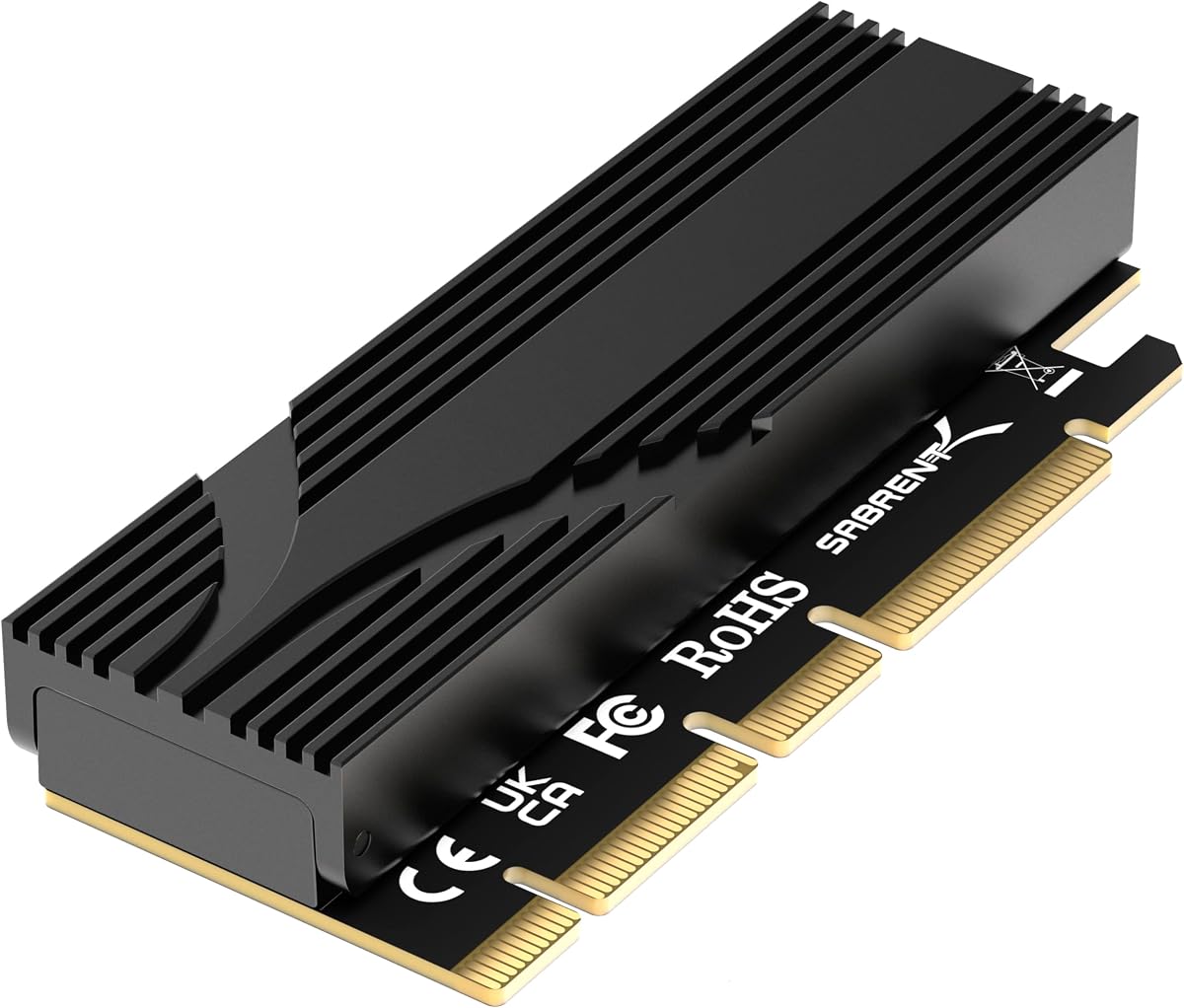
The SABRENT Gen5 adapter stands out as the top choice for users who want future-proof storage expansion. With support for PCIe 5.0, this card ensures your system remains relevant as next-generation NVMe drives become standard. The tool-free design makes swapping drives incredibly easy without searching for tiny screws.
We may earn a commission when you buy through this link, at no additional cost to you.
Its aluminum heatsink provides excellent passive cooling, keeping your drive temperatures low without the noise of an active fan. The x16 connector offers a stable physical connection even when used in smaller x4 or x8 slots. This versatility allows you to upgrade storage without worrying about complex motherboard configurations.
While it does not support SATA M.2 drives, this limitation is expected for high-performance NVMe adapters. You need to ensure your motherboard has adequate clearance around the slot, as tall coolers or GPUs can block access. For most modern builds, however, these trade-offs are minor compared to the performance benefits.
If you are looking for the best balance of speed, cooling, and ease of use, this SABRENT card is the clear winner. It is ideal for gamers and content creators who need reliable, high-speed storage expansion. Always check your motherboard slot generation to ensure you get the advertised speed.
Supporting PCIe 5.0 means this adapter is ready for the latest SSDs. You can run at full Gen4 speeds now and upgrade to Gen5 later without changing hardware.
The screwless locking mechanism saves time and effort. You can install or remove your SSD in seconds, making it perfect for users who switch drives often.
We may earn a commission when you buy through this link, at no additional cost to you.
This GLOTRENDS adapter offers exceptional value for users who need reliable PCIe 4.0 connectivity without breaking the bank. It includes a solid heatsink that can reduce drive temperatures by up to 20 degrees Celsius. This passive cooling solution ensures consistent performance during long file transfers or heavy system loads.
We may earn a commission when you buy through this link, at no additional cost to you.
The adapter supports M.2 drives up to 4TB, giving you plenty of room for storage expansion. It comes with both standard and low-profile brackets, making it suitable for small form factor cases as well as full towers. Compatibility is broad, working seamlessly with Windows, Linux, and macOS systems.
One thing to note is that you need an Intel 11th generation CPU or newer to take full advantage of PCIe 4.0 speeds. If you have an older system, it will still work but at lower speeds. This limitation is common across the industry and does not affect basic storage functionality.
For budget-conscious builders or anyone looking for a simple storage upgrade, this adapter is hard to beat. It balances price and performance perfectly while offering the cooling needed for sustained operations. Check your CPU generation to confirm full speed support before purchasing.
The included heatsink makes a real difference. It keeps your drive from throttling during sustained reads or writes, which is critical for large data tasks.
Having two bracket options means you can fit this in almost any case. It is a great choice for compact builds where space is tight.
We may earn a commission when you buy through this link, at no additional cost to you.
The ASUS Hyper M.2 V2 is the premium choice for users who need massive storage capacity in a single card. It supports four NVMe M.2 drives at once, making it perfect for workstations or servers. The included blower-style fan ensures that all four drives stay cool, which is essential for maintaining peak performance levels.
We may earn a commission when you buy through this link, at no additional cost to you.
This card is designed for advanced users who need high bandwidth. It can reach up to 128 Gbps when combined with compatible motherboards and processors. The VROC support allows you to create RAID arrays directly through the BIOS. This is a powerful feature for professional environments requiring speed and redundancy.
Using this card requires your motherboard to support PCIe x16 bifurcation. If it does not, you will only be able to use one drive. It also occupies a full x16 slot, so you need to check your case clearance. These requirements limit it to more advanced builds.
For professionals or power users who need maximum storage and speed, this ASUS card is the top pick. It offers enterprise-level features in a consumer-friendly package. Ensure your system supports bifurcation before you buy to avoid compatibility issues.
Four drive slots mean you can build a huge storage pool. It is perfect for video editors or data hoarders needing terabytes of fast space.
Unlike passive adapters, this one has a fan. It actively moves air to keep drives cool, preventing thermal throttling under heavy load.
We may earn a commission when you buy through this link, at no additional cost to you.
This unique adapter allows you to connect both a SATA and a NVMe drive to a single PCIe slot. It is an excellent option for those who have leftover SATA M.2 drives they want to use. The card includes heat sinks for both ports to ensure that your drives do not overheat during operation.
We may earn a commission when you buy through this link, at no additional cost to you.
The design includes LED indicators for power and data transfer status. This visual feedback helps you confirm that both drives are connected and working correctly. You do not need to install extra drivers for Windows or Linux, making setup very straightforward.
One limitation is that you need a SATA cable to connect the SATA drive, which adds extra cable management. The speeds will vary between the two slots since one is limited to SATA speeds. However, for mixed storage needs, this adapter offers great flexibility.
If you have older SATA M.2 drives alongside newer NVMe ones, this card lets you use them together. It is a practical solution for maximizing drive utility. Just ensure you have enough SATA headers on your motherboard for the extra cable.
Using one slot for two drives saves space in your case. It is a smart way to upgrade storage without using multiple PCIe slots.
LED lights give you peace of mind. You can see at a glance if your drives are active, which helps with troubleshooting.
We may earn a commission when you buy through this link, at no additional cost to you.
This adapter is a reliable workhorse for users who want solid performance at a good price. It includes an aluminum heatsink and multiple thermal pads, which ensures that your drive stays cool. The package is generous, often including a screwdriver and all necessary brackets.
We may earn a commission when you buy through this link, at no additional cost to you.
It supports PCIe 4.0 speeds fully, allowing your NVMe drive to reach its maximum potential. Backward compatibility means it works well with older Gen3 systems too. This makes it a versatile choice regardless of your current motherboard generation.
While it does not have any fancy features like fans or RAID support, it does exactly what it promises. The build quality is good and the cooling is effective. For most users who just need a simple, reliable adapter, this is a great choice.
Choose this if you want a straightforward adapter that gets the job done without extra cost. The included accessories make it a convenient option for quick upgrades. It handles high-speed drives well and fits most standard cases easily.
Getting thermal pads and a screwdriver in the box is a nice touch. It means you have everything you need to start right away.
Supporting both Gen3 and Gen4 makes this adapter future-proof. You can use it now and upgrade your system later without buying new hardware.
We may earn a commission when you buy through this link, at no additional cost to you.
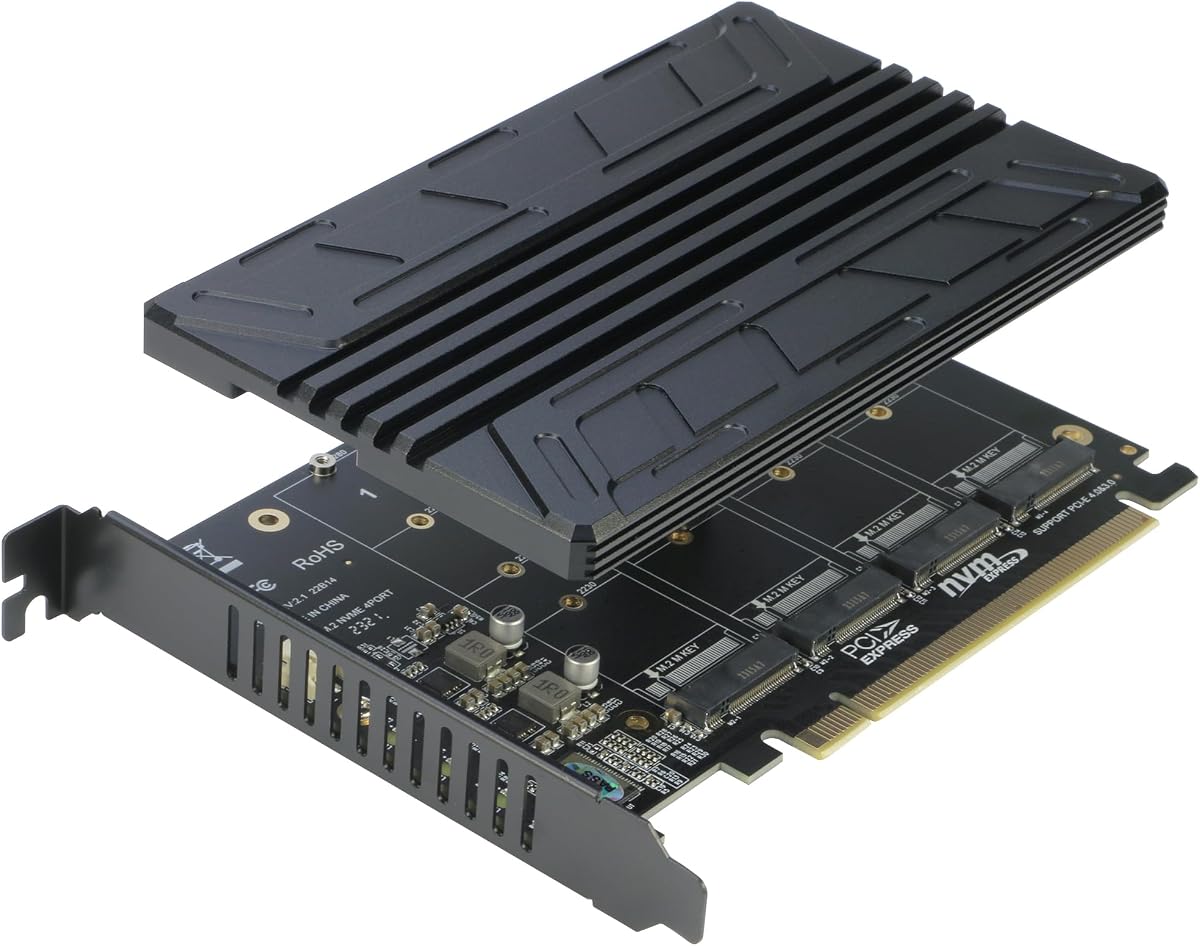
This RIITOP adapter gives you four NVMe ports in a single PCIe card. It is perfect for servers or workstations that need lots of storage. The card includes a heatsink to protect your drives from overheating, which is important when running multiple drives at once.
We may earn a commission when you buy through this link, at no additional cost to you.
Each drive slot has its own LED indicator, so you can easily see which drives are active. This helps with monitoring and troubleshooting. It supports up to four 32Gbps connections for maximum throughput when configured correctly with your motherboard.
You must enable bifurcation in your BIOS to use all four ports. If you skip this step, only one drive will be recognized. This requires some technical know-how. However, once set up, it provides a very efficient way to manage multiple SSDs.
For power users building custom storage arrays, this adapter is a strong option. It allows you to scale your storage easily without buying multiple cards. Just be sure your motherboard supports the necessary BIOS settings before you start.
Separate LEDs for each drive make monitoring easy. You can quickly spot if one drive has an issue without checking software.
Adding more storage is simple. Just plug in another drive and update your BIOS settings to see the new capacity.
We may earn a commission when you buy through this link, at no additional cost to you.
This ELUTENG adapter focuses on stability and ease of use. It uses solid-state capacitors to ensure smooth power delivery to your drive. This protects against voltage spikes and helps maintain stable performance. The aluminum heatsink provides reliable cooling for most standard drives.
We may earn a commission when you buy through this link, at no additional cost to you.
Installation is straightforward with a simple screw-in design. The included low profile bracket makes it a good fit for smaller cases. It works with a wide range of operating systems, from Windows to Linux. This makes it a versatile choice for different user needs.
While it does not support PCIe 5.0 speeds, it handles Gen3 and Gen4 well. This is enough for most users. The build quality is solid for the price. It is a safe choice for anyone who values reliability over cutting-edge features.
If you want a dependable adapter that works out of the box, this is a good pick. It protects your data with stable power and keeps your drive cool. Check your slot size to ensure the bracket fits your case.
Solid state capacitors help regulate voltage. This adds an extra layer of protection for your expensive SSDs during operation.
Compatible with many systems. Whether you run Windows or a Linux server, this adapter will be recognized easily.
We may earn a commission when you buy through this link, at no additional cost to you.
This adapter is designed for straightforward performance at a low price. It uses an aluminum heatsink to cool your drive, with claims of up to 20 degree reductions. This is important for maintaining speed during long tasks. It supports drive sizes from 2230 to 2280.
We may earn a commission when you buy through this link, at no additional cost to you.
The design is simple and effective. You just insert your drive and mount it to your case. It fits into any standard PCIe slot, allowing for broad motherboard compatibility. It is perfect for users who want a no-frills solution.
While it lacks features like active cooling or multiple drive support, it does the core job well. The cooling performance is a highlight for a budget card. This makes it a reliable choice for basic upgrades without breaking the bank.
For those on a tight budget who still want cooling, this is a strong candidate. It handles high-speed drives well and is easy to set up. Check your slot size to ensure physical clearance in your case.
The heatsink is key to its value. It keeps your SSD from slowing down when the gets hot.
Supporting many sizes means it works with almost any drive. You can use short or long drives as you like.
We may earn a commission when you buy through this link, at no additional cost to you.
This GLOTRENDS adapter is unique because it uses a PCIe X1 slot instead of the larger X16. This is useful if you want to add storage without blocking your graphics card slot. It supports M.2 NVMe drives but operates at lower speeds due to the X1 lane limitation.
We may earn a commission when you buy through this link, at no additional cost to you.
It is a great solution for adding extra storage to a system with few free slots. The package includes brackets for small and large cases. Support is available for life, which gives peace of mind for long-term use.
While it cannot reach full NVMe speeds, it is fast enough for secondary drives. You should not boot your OS from it if your motherboard is very old. For data storage and files, it works well. Just be aware of the speed limits.
Choose this if you need to add a drive but have no full-length slots available. It is a clever way to utilize space effectively. Ensure your drive does not need full X4 speeds before you buy.
Using an X1 slot keeps your X16 free. This is ideal for gaming PCs where the GPU is critical.
Getting lifetime technical help is rare. It means you can always reach out if you have questions about setup or issues.
We may earn a commission when you buy through this link, at no additional cost to you.
This StarTech adapter is built for reliability and professional use. It supports both AHCI and NVMe drives, giving you flexibility with older and newer hardware. The build quality is solid, designed to withstand regular use in servers or workstations.
We may earn a commission when you buy through this link, at no additional cost to you.
It works well with PCIe 3.0 motherboards and is backward compatible with older standards. This broad compatibility ensures you can use it in many systems. The two-year warranty provides added assurance for your purchase. It is a trusted brand in IT hardware.
While it does not support the newest Gen4 or Gen5 speeds, it remains a solid choice for older systems. The cost is higher than budget options, but you pay for durability. For users who need dependable performance, this is a great pick.
Choose this if you want an adapter that will last for years. It offers a good balance of performance and reliability. Check your motherboard specs to ensure it fits your slot type before you buy.
StarTech is known for reliable hardware. This card is built to handle tough environments without failing.
Supporting AHCI means you can use older SATA M.2 drives. This adds flexibility if you have legacy drives lying around.
We may earn a commission when you buy through this link, at no additional cost to you.
Selecting the right adapter involves considering speed, compatibility, cooling, and your specific use case.
The adapter must match your motherboard's PCIe generation to achieve optimal speeds. If your motherboard supports PCIe 4.0 but you buy a Gen3 card, you will lose potential bandwidth. Always check your CPU and motherboard manual before purchasing to ensure generation alignment.
Ensure your motherboard supports at least the same generation as your SSD to avoid throttling.
Check that the adapter supports your specific drive type. Most adapters support M-key NVMe SSDs but not B-key SATA drives. Some models support multiple drive sizes, while others are limited. Verify keying and size support on the product page.
Verify the adapter supports your specific drive type (NVMe or SATA) and size (2280 2230) to ensure physical fit.
NVMe drives generate heat during sustained transfers. Passive heatsinks are common and effective for most users. Active cooling with fans is better for high-performance or multi-drive setups. Avoid models with no cooling if you plan on heavy use.
Look for adapters with built-in heatsinks to prevent thermal throttling during long file transfers.
Multi-drive adapters require bifurcation support to split one PCIe slot into multiple lanes. If your motherboard does not support this, you may only use one drive. Check your BIOS settings or motherboard manual for x16 bifurcation capabilities before buying.
Confirm your motherboard supports bifurcation if you plan to use a card with multiple drive slots.
The card's length and height matter for your case clearance. Some adapters are long and may clash with GPUs or large coolers. Low-profile brackets help in compact cases. Always measure your available space before choosing a model.
Measure your case clearance to ensure the card fits without blocking other components.
Most modern operating systems like Windows and Linux support NVMe out of the box. Older systems may need drivers. Ensure the adapter works with your OS version. Linux support is usually strong for these adapters.
Ensure your operating system supports NVMe natively or has the required drivers available.
Choosing a reputable brand often means better build quality and support. Look for brands with positive reviews and a clear warranty policy. Two-year warranties are common for quality adapters. Avoid no-name brands to reduce risk of failure.
Select a brand with good reviews and a solid warranty for peace of mind.
Some adapters include tools or screwless designs for easier installation. Others require extra steps to mount drives. Consider your comfort level with hardware setup. Tool-free designs save time and are more convenient for frequent changes.
Prefer tools with tool-free designs if you plan to swap drives frequently.
First, power off your computer and disconnect all cables before opening the case. Ground yourself to avoid static electricity that could damage components. Locate an empty PCIe slot on your motherboard that matches the adapter requirements.
Insert the adapter firmly into the slot until it clicks into place. Secure it with the provided screws on the backplate to ensure stability. Install your M.2 drive into the adapter using the screws or tool-free mechanism. Ensure the drive is flat and secure.
Power on your system and enter the BIOS to confirm the adapter is detected. You may need to enable XMP or adjust boot order. If installing a new drive, format it in your operating system. Keep the case fans working to maintain good airflow for cooling.
Most high-performance adapters only support NVMe drives. SATA M.2 drives use a different connector type. Always check the product description to confirm if SATA is supported. If it only says NVMe, it will not work with SATA.
Yes, most modern adapters allow booting from NVMe drives. Ensure your motherboard BIOS supports NVMe booting. Some older systems may require updates. Check your motherboard manual for boot support before installing.
Most adapters are plug-and-play on Windows and Linux. You usually do not need extra drivers. Some older systems may require specific NVMe drivers. Check the product page for OS compatibility details.
Your motherboard slot might be limiting the speed. Ensure you are using a x4 slot or higher. PCIe generation mismatches can also reduce speed. Check your slot type and BIOS settings to confirm bandwidth.
Bifurcation splits a single PCIe lane into multiple slots. It is required for multi-drive adapters. If your motherboard does not support it, you may only use one drive. Check your BIOS options for this setting.
Most M2 PCIe adapters are designed for desktops with PCIe slots. Laptops often lack these slots. Some specialized models exist for laptops but are rare. Check your laptop's specs before attempting installation.
We reviewed ten top M2 Pcie adapters ranging from budget-friendly single-drive options to multi-slot premium cards. Each offers unique benefits depending on your needs. Whether you want speed, capacity, or value, there is a fit here for your build.
Prioritize compatibility with your motherboard slot and drive type. Cooling is also essential for maintaining performance. If you want the best all-rounder, the SABRENT Gen5 is top rated. For multiple drives, the ASUS or RIITOP options stand out.
Prices for these adapters change often. Check current listings to ensure you get the best deal. Always verify your system requirements before purchasing to avoid returns. Happy upgrading!